Measured guide · in-house test data
How to Make an iPhone Photo Compatible with an Upload Form
A message such as 'invalid image' often hides several possible rules. The form may reject HEIC, exceed a byte limit, require exact dimensions, or distrust a renamed extension. Work through each rule instead of repeatedly compressing at random.
By Prashantkumar Kishanrao Sundge · Published · Reviewed
What this guide establishes
- Write the form's rules down before touching the photo. Format, maximum bytes, required dimensions, and aspect ratio are four separate rules with four separate fixes.
- File size and pixel dimensions are independent. A 1000×1000 image can be 80 KB or 4 MB depending on content and encoding.
- Fit mode treats dimensions as maximums and keeps the whole image. Crop mode produces exact dimensions by removing content. Pick deliberately.
- Orientation is applied to the pixels before resizing, so the prepared copy is upright regardless of whether the receiver reads EXIF tags.
- Some combinations are genuinely impossible. A good tool tells you so rather than silently exceeding the limit.
Decode the error message first
Upload forms are notoriously bad at saying what went wrong. 'Invalid image', 'upload failed', and 'file not accepted' can each mean any of half a dozen different things, and guessing wastes both time and image quality. Before changing anything, work out which rule you are failing.
Look for the requirements printed near the upload control, in a help link, or in the placeholder text. If they are genuinely not stated anywhere, the common defaults are worth trying in order: format first, since HEIC rejection is by far the most frequent cause for iPhone photos; then size, since 2 MB and 5 MB ceilings are widespread; then dimensions.
If the form rejects the file instantly, before any upload progress appears, the check is happening in the browser and is almost certainly about the extension or the file size. If it uploads fully and then fails, the check is on the server and may involve decoding the image, inspecting its dimensions, or scanning its metadata. That timing difference is a useful free diagnostic.
Write down the destination rules
Record the accepted extensions, maximum KB or MB, width and height, and whether the form requests a square crop. File size and pixel dimensions are independent: a 1000×1000 image can be either small or large depending on content and encoding.
If the form lists JPG, create a real JPG rather than renaming .heic. PixelConvert's file-signature check is designed around the same distinction that strict upload validators make.
Be careful with how dimension requirements are worded, because the phrasing changes the correct operation. 'Maximum 800×800' means the image must fit within those bounds — a 3:2 photo becomes 800×533 and stays complete. 'Must be 800×800' means the output canvas has to be exactly square, which for a 3:2 photo requires removing content. 'Minimum 800×800' means do not shrink below that. These three sentences look similar and demand three different things.
Note the units too. A limit written as 500 KB is ambiguous between 500,000 and 512,000 bytes, and forms disagree. If you are close to the boundary, target the smaller interpretation.
Use conversion or preparation appropriately
Use HEIC to JPG when compatibility is the only problem. Use Upload-Ready Image Builder when the form includes a size or dimension ceiling. Fit mode preserves the aspect ratio within maximum dimensions; crop mode fills exact dimensions with a centered crop.
For JPEG and WebP, the preparation endpoint searches for the highest quality that remains under the byte ceiling. If quality alone is insufficient, fit mode may reduce dimensions. Exact crop dimensions are not silently changed.
That search matters more than it sounds. The manual alternative is to guess a quality, export, check the size, and repeat — which people do, usually converging on a value far lower than necessary because they overshoot downward to be safe. A bounded search finds the highest quality that fits, so you keep as much of the image as the limit permits rather than throwing away quality you did not have to lose.
The order of operations is also deliberate: orientation is applied to the pixels first, then resizing or cropping, then the quality search. Doing it in any other order produces a wrong result — resizing before orientation, for example, would apply your width and height to the wrong axis for a rotated photo.
Fit or crop: choosing correctly
This is the single decision most likely to produce a technically valid file that is nonetheless wrong. Fit preserves everything in the photo and accepts whatever output dimensions that implies. Crop guarantees the output dimensions and accepts that content will be removed.
Our measured fit-versus-crop case study makes the trade concrete. A 1200×800 source requested at 600×600 produced a 600×400 file in fit mode, containing the entire original composition. The same request in crop mode produced an exact 600×600 file — by taking the central 800×800 region of the source, which removed 200 pixels from each horizontal side, a third of the original width.
For a profile photo or avatar where a square is mandatory and the subject is centred, crop is correct. For a document photo, an identification card, or anything where the edges of the frame contain necessary information, crop is dangerous — the important content may be exactly what gets cut. When in doubt and the form permits it, choose fit.
PixelConvert uses a centred crop. It does not detect faces or work out where the subject is. If your subject is off-centre, crop the photo yourself in an editor first so the part you want is in the middle, then prepare it.
When the combination is impossible
Some requirements cannot be satisfied together, and recognising this quickly saves considerable frustration. A common case: a form demands exact dimensions and a very small byte ceiling, and the image content is detailed enough that even the lowest tested quality at those exact dimensions exceeds the limit. Because the dimensions are fixed, the usual escape route — shrinking the image — is closed.
PixelConvert returns an explicit error in that situation rather than quietly producing a file over the limit or silently changing the dimensions you specified. That is the correct behavior: a file that violates the stated rule will be rejected anyway, and one that has had its dimensions altered without telling you will fail a dimension check you thought you had satisfied.
When you hit a genuine impossibility, the options are to reduce the visual complexity of the image (a simpler background compresses far better), to ask whether the dimension requirement is truly exact, or to check whether the form accepts a different format — WebP at the same dimensions and visual quality is frequently well under a ceiling that JPEG cannot meet.
Metadata, orientation, and privacy
iPhone photos carry EXIF metadata that can include the capture time, the device model, exposure settings, and — if location services were enabled for the camera — the GPS coordinates where the photo was taken. For a photo going to a job portal, a public listing, or a stranger, those coordinates are a genuine privacy exposure, and people are routinely unaware they are attached.
Prepared copies apply recorded orientation before resizing and omit EXIF/GPS metadata. This is useful for sharing privacy but means the derivative is not a complete photographic archive.
The orientation half of this solves a separate and very visible problem. A photo taken with the phone rotated is often stored as a landscape pixel grid plus a tag saying which way up it should be displayed. Software that honours the tag shows it correctly; software that ignores it shows it sideways. Baking the rotation into the pixels removes the disagreement entirely, which is why a prepared copy arrives upright even in systems that would have rotated it.
Keep the original photo. The prepared copy is a derivative built for one destination's rules, not a replacement for what came off the camera.
Verify before submission
Open the prepared copy, confirm the subject was not cropped incorrectly, and check the final dimensions and byte count shown in the result. Keep the original photo separately.
Check the numbers against the rules you wrote down, one at a time. Is the extension what the form asked for? Is the byte count under the ceiling — under, not equal to? Are the dimensions right, and if the rule was exact dimensions, are they exactly right? Is the photo upright? Is the subject fully in frame?
Then submit. If it still fails after all five checks pass, the form is enforcing something it did not document — a minimum dimension, an aspect-ratio constraint, a colour-space requirement, or a rule unrelated to the image such as a file-name restriction or an account limit. At that point contact the organisation rather than degrading the photo further, because more compression will not fix a rule you have not identified.
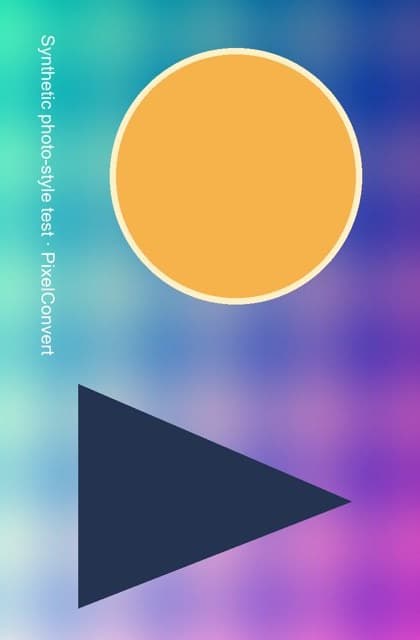
Orientation test used to confirm that rotation happens before resizing or size optimization.
- Source pixel matrix
- 640×420 with orientation 6
- Displayed output
- 420×640 upright
- Final byte size
- 24,806 bytes
Reproduce the test
These deterministic PixelConvert files contain no personal photos or third-party artwork. Download them to repeat the measurements or test another workflow.
- Download the orientation-tagged source ↓
Synthetic 640×420 JPEG carrying EXIF orientation 6.
- Download the corrected output ↓
Upright 420×640 derivative saved without the source EXIF block.

Browser and failure checks
- Current Chromium desktop
- The preflight reports signature, dimensions, byte size, and detected metadata categories before anything is sent to the server.
- 390 px mobile viewport
- Requirement fields, pass/fail explanations, the prepare action, and the result summary remain operable in a single-column layout.
- Infeasible request
- When exact dimensions and a byte ceiling cannot both be met, the API returns an actionable 422 rather than exceeding the requested maximum or silently altering the dimensions.
How this was tested
A deterministic source was tagged with EXIF orientation 6, reopened, transposed, and re-encoded. The current preparation pipeline performs the same orientation step before fit/crop operations.
Read the full PixelConvert methodology →Limitations
- The destination can have undocumented validation rules.
- Automated size compliance cannot judge whether a crop includes the correct subject.
- Byte-limit units are ambiguous across forms; a stated KB limit may mean 1,000 or 1,024 bytes per kilobyte.
Frequently asked questions
- The form says JPG but my photo is HEIC. Can I rename it?
- No. Renaming changes the filename, not the file's contents. A validator that checks the file signature or decodes the image will still see HEIC. You need an actual conversion.
- What is the difference between fit and crop?
- Fit treats your width and height as maximum bounds and keeps the entire image, so the output may not match your numbers exactly. Crop produces exactly your dimensions by scaling to cover and taking a centred cut, which removes content. Use fit unless the destination genuinely requires an exact canvas.
- My photo is under the size limit but still gets rejected. Why?
- Most often the format, not the size. It may also be a dimension minimum, an aspect-ratio rule, or a server-side decode check. Work through format, then bytes, then dimensions, then aspect ratio in that order rather than compressing further.
- Will the tool remove my GPS location?
- Yes. Prepared outputs are rebuilt without EXIF and GPS metadata. Keep your original file if you need the capture information preserved.
- Why does my photo arrive sideways after uploading?
- The photo is stored as a rotated pixel grid plus an orientation tag, and the receiving system ignores the tag. A prepared copy applies the rotation to the pixels themselves, so there is no tag left to ignore.
- What if no quality setting gets me under the limit?
- If the dimensions are not fixed, allow fit mode to reduce them. If they are fixed, the combination may be impossible for that image — try a simpler composition, check whether WebP is accepted, or ask whether the dimension rule is truly exact.
Revision note: Reviewed 11 September 2026: added error-message diagnosis, the wording differences between maximum, exact, and minimum dimension rules, a fit-versus-crop decision section citing the measured case study, impossible-combination handling, and a pre-submission checklist.