Measured guide · in-house test data
Image File Size, Dimensions, and Quality Explained
A reliable image workflow treats four things separately: pixel dimensions, encoded byte size, compression settings, and perceived quality. Changing one can influence the others, but none is a direct substitute for another.
By Prashantkumar Kishanrao Sundge · Published · Reviewed
What this guide establishes
- Dimensions, bytes, quality setting, and perceived quality are four different things. Confusing any two of them produces bad decisions.
- Halving both dimensions removes three quarters of the pixels but does not divide the file size by four.
- A quality number is an encoder instruction, not a percentage of the original retained. Quality 80 in one format is not quality 80 in another.
- Identical pixels measured 826,866 bytes as PNG, 68,917 as JPG q85, and 26,774 as WebP q85 — same dimensions throughout.
- Never upscale to satisfy a minimum dimension. Interpolation adds pixels, not detail, and some validators detect the difference.
Four things people treat as one
Almost every confusing image problem comes from collapsing four separate properties into a single vague notion of 'size' or 'quality'. Naming them separately makes the problems tractable.
Pixel dimensions are how many pixels wide and tall the image is — 1200×800. This determines how much detail the image can represent and how large it can be displayed or printed before looking soft. Byte size is how much storage the encoded file occupies — 68,917 bytes. This determines upload limits, page weight, and transfer time. The quality setting is a number you hand to an encoder to control how aggressively it compresses. Perceived quality is how good the image looks to a person, which is the only one of the four that actually matters and the only one with no number attached.
The relationships between them are real but loose. Larger dimensions tend to mean more bytes. A higher quality setting tends to mean more bytes and better perceived quality. But every one of these tendencies has exceptions, and the exceptions are where people get stuck.
Dimensions count pixels
A 1200×800 image contains 960,000 pixels. Resizing to 600×400 leaves 240,000 pixels—one quarter as many—but the file does not have to become exactly one quarter the size because headers, image content, and encoder behavior remain.
Dimensions matter for display sharpness, memory use, and form rules. Never enlarge a small source just to create more pixels; interpolation cannot recreate missing scene detail.
The upscaling warning deserves emphasis because the situation arises constantly: a form demands a minimum of 1000×1000 and your photo is 800×800. Enlarging it satisfies the number. It does not satisfy the intent, which was to ensure enough real detail was present. The enlarged image contains 1,000,000 pixels of which only 640,000 carry original information; the rest are interpolated guesses between neighbours. The result looks soft, and some validators check for exactly this.
Downscaling, by contrast, is safe and often beneficial. Discarding pixels you do not need reduces file size substantially and can actually improve apparent sharpness, because the averaging involved suppresses noise and compression artifacts from the original.
Byte size measures the encoded file
The same 1200×800 synthetic photo-style image measured 826,866 bytes as PNG, 68,917 as JPEG quality 85, and 26,774 as WebP quality 85. The dimensions were identical in every case.
Flat graphics can reverse common expectations. Our sharp-text sample was smaller as optimized PNG than JPEG quality 70. This is why PixelConvert tests the actual encoded output rather than applying a promised percentage reduction.
Image content is the variable people forget. Two photographs at identical dimensions and identical quality settings can differ in file size by a factor of five, because compression works by finding redundancy and some scenes have far more of it than others. A photograph of a clear sky compresses enormously; a photograph of foliage, gravel, or a crowd compresses barely at all. Fine random detail is exactly what compression cannot exploit.
This has a practical consequence for anyone fighting a byte limit: changing the photograph is a legitimate strategy. A portrait against a plain wall will meet a tight ceiling at a quality setting that the same portrait against a busy background cannot reach.
Quality is not a universal percentage
A quality value controls an encoder; it is not a score saying how much of the original remains. Quality 80 in one format or library is not mathematically equal to quality 80 elsewhere.
For a byte ceiling, PixelConvert performs a bounded search and selects the highest tested JPEG or WebP quality that fits. In fit mode it can reduce dimensions when the minimum tested quality is still too large. Review the final result at its intended display size.
What the number actually does, in JPEG's case, is scale a table of divisors used to round away frequency information. A higher number means smaller divisors, less rounding, and more retained detail. But the mapping from that number to visible quality is not linear and is not consistent between encoders. Two libraries can both call a setting 'quality 80' and produce measurably different files from the same input.
The useful rules of thumb, stated as rules of thumb rather than facts: for photographs, the range from roughly 75 to 90 is where most people stop noticing degradation at normal viewing sizes, and going above about 95 costs a great many bytes for differences almost nobody can see. Below about 60, artifacts around edges and in smooth gradients become visible to ordinary viewers. Flat graphics and text degrade much earlier than photographs do, which is why they belong in a lossless format.
Why 'reduce this by 50%' is an ambiguous request
The phrase means at least three different operations and the results are wildly different. Halving the byte size is one thing. Halving each dimension is another — and it removes three quarters of the pixels, not half. Halving the quality number is a third, and it does not halve anything meaningful because the quality scale is not a percentage.
When someone asks for an image at 'half the size', the useful reply is a question: half the file size, or half the width and height? For a web page, file size is usually meant. For a print layout, dimensions usually are.
The related confusion is percentage reduction claims. A tool advertising '90% smaller' is describing a result on some image, not a property of your image. Our own case study measured a 96.1% byte reduction, and we state explicitly that this is one measurement of one deterministic file, not a promise. An image already well-optimised cannot be reduced by 90% again, and a tool that claims otherwise is either resizing without telling you or destroying the image.
DPI, PPI, and why they do not affect your file
Image files can carry a DPI or PPI value in their metadata. For screen use, this number does nothing whatsoever. It is a note about intended physical printing size, and it does not change the pixels, the file size, or how a browser displays the image.
The confusion is entrenched because print workflows genuinely do use it. An image at 3000×2400 pixels tagged 300 DPI is being described as intended for a 10×8 inch print. The same 3000×2400 pixels tagged 72 DPI describe a much larger, lower-quality print of the same file. The pixels are identical in both cases; only the accompanying instruction differs.
So when a form or a printer asks for '300 DPI', what they need is enough pixels for the physical size they intend. Multiply the intended print dimensions in inches by 300 to get the required pixel dimensions. Changing the DPI tag on a file without changing its pixel dimensions accomplishes nothing — the image does not gain detail, and a printer working from it will produce exactly the same output.
Putting it together
When you have a requirement to meet, translate it into which of the four properties it constrains. An upload limit of 2 MB constrains bytes. A layout slot of 1200 pixels wide constrains dimensions. A print at 10 inches constrains dimensions too, via the DPI arithmetic above. 'Make it look good' constrains perceived quality and has no number.
Then change the property that is constrained, using the cheapest available lever. If bytes are the problem and dimensions are unconstrained, reducing dimensions is far more effective than reducing quality — you are removing pixels rather than degrading the ones you keep, and the result usually looks better at the smaller size than a heavily compressed large version does.
If dimensions are fixed and bytes are the problem, quality is your only lever, and a bounded search finds the best setting that fits rather than a guess that overshoots. If both are fixed and the image still will not fit, the content is the remaining variable — or the requirement is genuinely unsatisfiable and worth questioning.
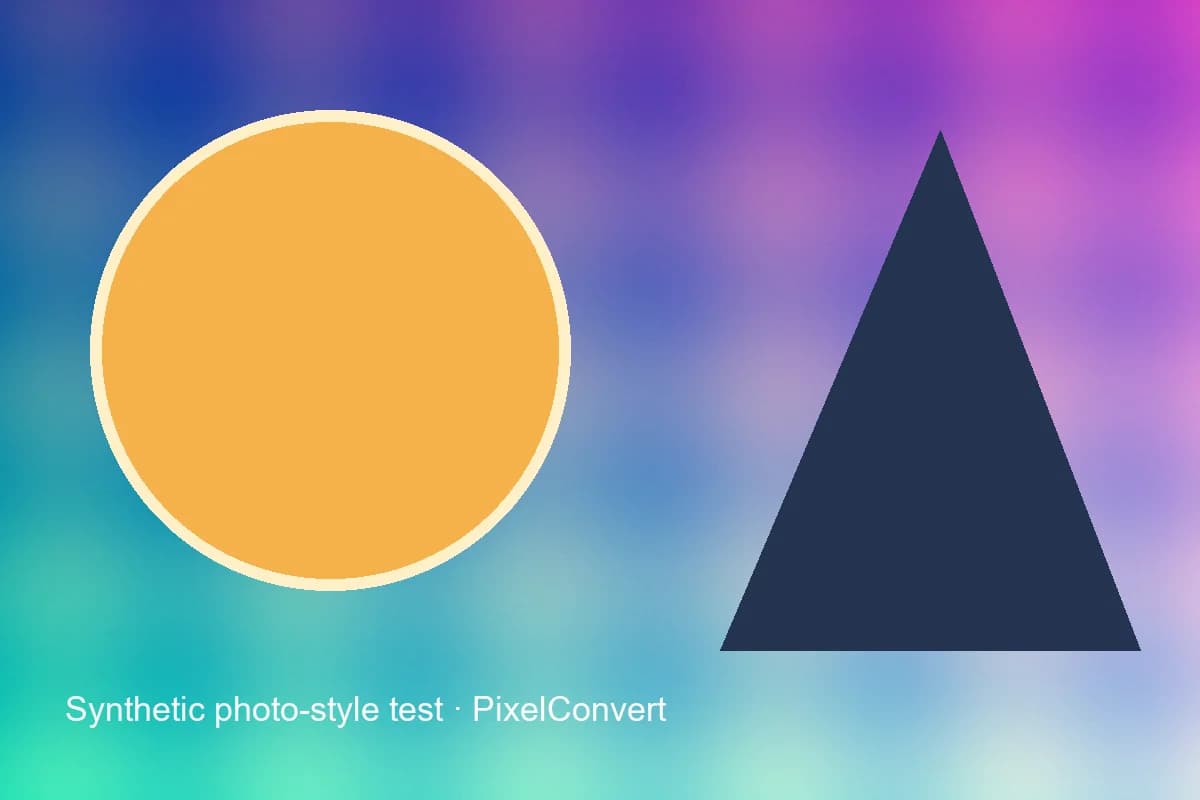
Identical 1200×800 pixels encoded three ways; the WebP file shown here was the smallest in this specific test.
- Pixel count
- 960,000 in every output
- PNG
- 826,866 bytes
- JPG / WebP q85
- 68,917 / 26,774 bytes
Reproduce the test
These deterministic PixelConvert files contain no personal photos or third-party artwork. Download them to repeat the measurements or test another workflow.
- Download the PNG encode ↓
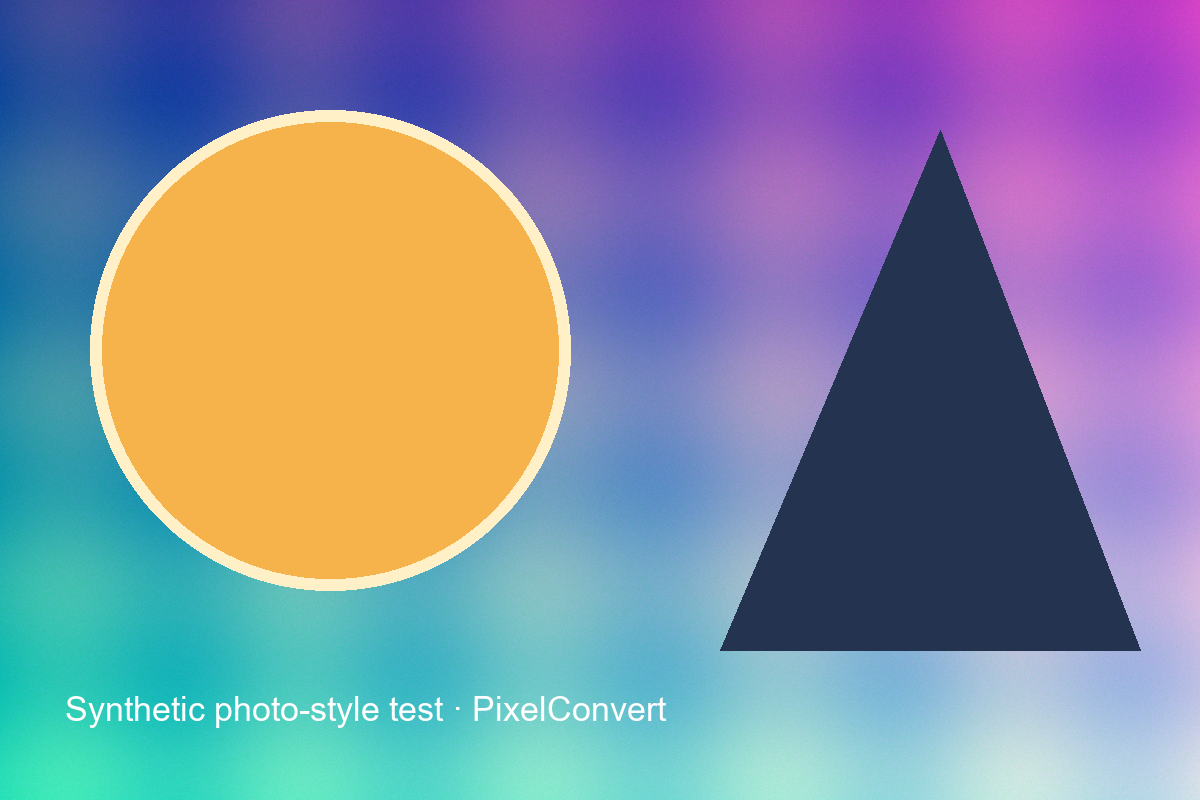
826,866-byte lossless encode at 1200×800.
- Download the JPG encode ↓
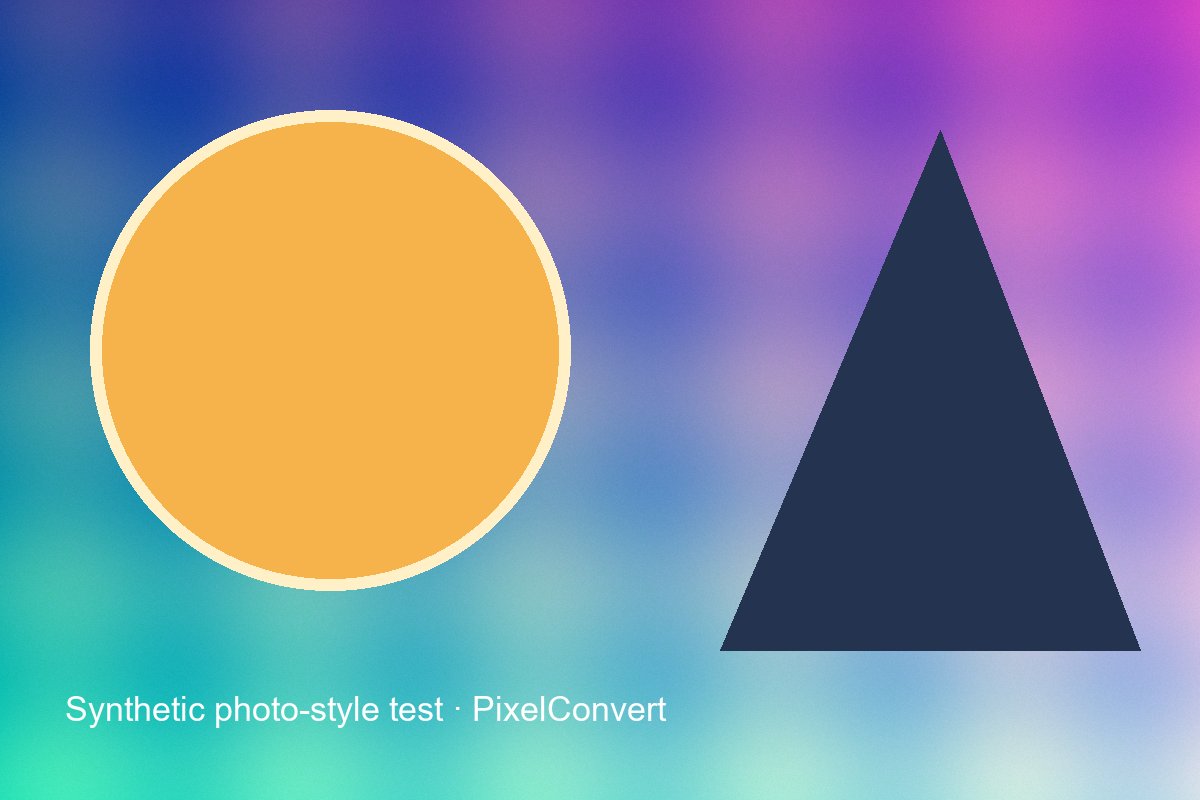
68,917-byte progressive JPEG at the same 1200×800 dimensions.
- Download the WebP encode ↓
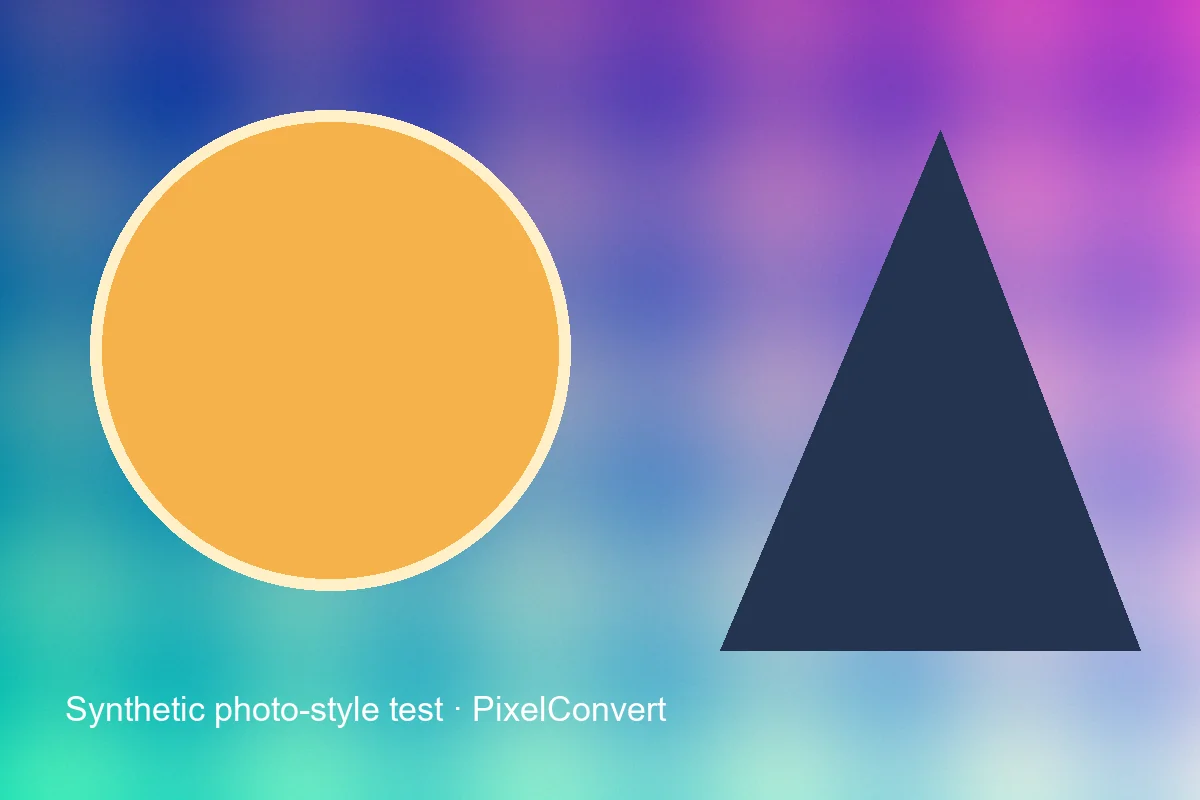
26,774-byte WebP at the same 1200×800 dimensions.
Browser and failure checks
- Current Chromium desktop
- All three files report 1200×800 in the browser despite a 31× spread in byte size, demonstrating that dimensions and bytes are independent.
- 390 px mobile viewport
- The measurement tables remain readable and do not force horizontal page scrolling.
- Content-dependence check
- The separate sharp-text corpus produces the opposite ranking, confirming that image content changes which format is smallest.
How this was tested
Deterministic source pixels and Pillow 12.3 encoders were used. PNG optimization, JPEG progressive/optimize, and WebP method 6 were enabled. No resampling occurred.
Read the full PixelConvert methodology →Limitations
- The results are not a benchmark across all encoders.
- Perceived quality is content- and viewing-condition-dependent.
- The quality-range rules of thumb are stated as general guidance for photographic content and are not measured thresholds.
Frequently asked questions
- If I halve the width and height, does the file size halve?
- No. Halving both dimensions removes three quarters of the pixels, not half. The file size usually falls substantially but not by an exact fraction, because headers, encoder behavior, and image content all affect the result.
- What does a quality setting of 85 actually mean?
- It is an instruction to the encoder controlling how aggressively information is rounded away. It is not a percentage of the original retained, and the same number in a different format or library produces a different result.
- Why are two photos at the same dimensions and quality such different sizes?
- Image content. Compression exploits redundancy, and a smooth sky has enormous redundancy while foliage or gravel has almost none. A factor of five between two photographs at identical settings is entirely normal.
- Can I increase an image's DPI to improve quality?
- No. DPI is a metadata note about intended print size and does nothing for screen display. Changing it does not add pixels or detail. If a printer needs 300 DPI, what they need is enough pixels for the physical size — intended inches multiplied by 300.
- A form needs a minimum dimension larger than my photo. Can I upscale?
- You can, but the enlarged image contains interpolated pixels rather than real detail, it will look soft, and some validators detect this. A better source is the only real fix.
- To hit a size limit, should I reduce dimensions or quality?
- Reduce dimensions first if they are not constrained — removing pixels you do not need usually looks better than degrading the ones you keep. Use quality reduction when dimensions are fixed, and prefer a bounded search that finds the highest setting that fits over a guess.
Revision note: Reviewed 11 September 2026: added the four-properties framing, the content-dependence of compression, an explanation of what a quality number actually controls, the ambiguity of percentage-reduction requests, a DPI and PPI section, and a decision procedure. Measurements are unchanged.