Measured guide · in-house test data
Case Study: Fit vs Crop for Exact Image Dimensions
A width and height field can describe either maximum boundaries or an exact canvas. Those rules produce different results from the same source. This case study sends one 1200×800 synthetic image through PixelConvert in fit and crop modes with a 600×600 request, then records the dimensions, bytes, and visible content of both outputs.
By Prashantkumar Kishanrao Sundge · Published · Reviewed
What this guide establishes
- The same 600×600 request produced a 600×400 file in fit mode and an exact 600×600 file in crop mode from one source.
- Crop mode removed 200 pixels from each horizontal side — a third of the original width — to make the square.
- The crop output was larger (54,468 vs 38,620 bytes) because it has 50% more output pixels, not because it is higher quality.
- Fit is the safe default. Choose crop only when the destination genuinely requires an exact canvas.
- The crop is centred, not subject-aware. If your subject is off-centre, crop manually first.
Translate the form's wording into the right rule
Use fit when 600×600 means the image must stay within those maximum boundaries. The entire source remains visible and its aspect ratio is preserved, so a 3:2 landscape source becomes 600×400 rather than a stretched square.
Use crop only when the destination requires exactly 600×600 pixels. PixelConvert scales the image to cover the square and takes a centered crop. It does not distort the source, but content outside the square is removed.
The wording in the form is the evidence you have to work from, and it is often imprecise. 'Maximum 600×600', 'up to 600×600', and 'no larger than 600×600' all mean fit. 'Must be 600×600', 'exactly 600×600', and a form showing a square preview frame all mean crop. 'Recommended 600×600' usually means fit, since a recommendation is not a constraint.
When the wording is genuinely ambiguous, fit is the safer guess. A fitted image that is smaller than the stated box is usually accepted; a cropped image that has lost necessary content is a substantive error that may not be noticed until it matters.
Measured results from the production endpoint
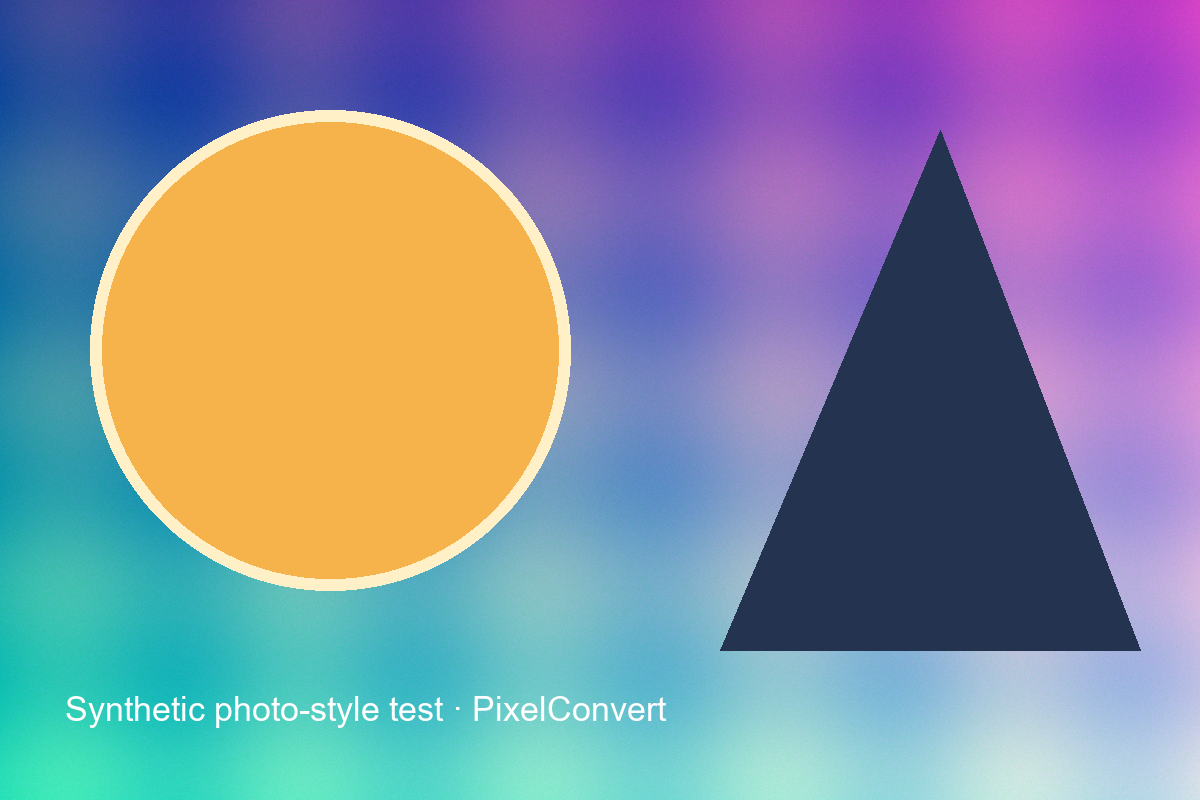
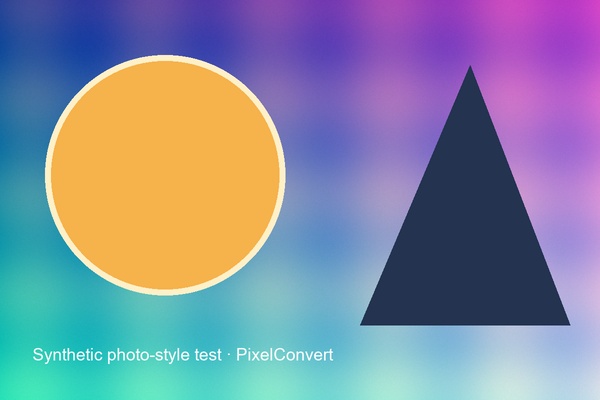
The source was a copyright-safe 1200×800 optimized PNG measuring 826,866 bytes. Fit mode returned a 600×400 JPEG measuring 38,620 bytes. Crop mode returned an exact 600×600 JPEG measuring 54,468 bytes. Both requests used JPEG quality 95 and completed without warning codes.
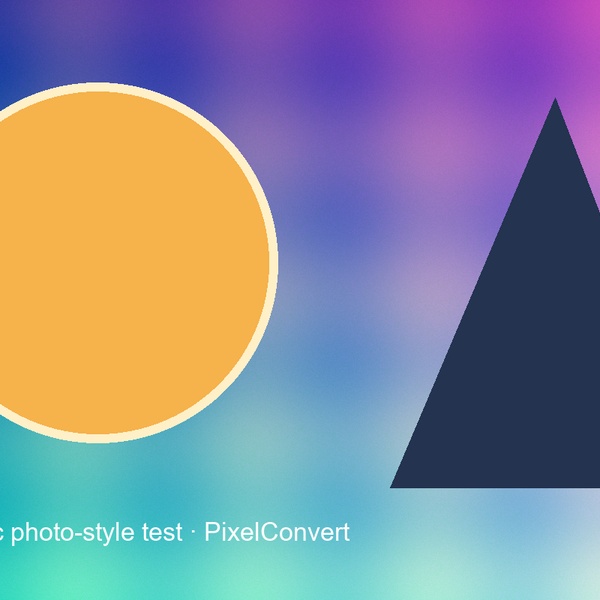
For the square result, the source's central 800×800 region was retained before resizing. That removed 200 source pixels from each horizontal side, or one third of the original width in total. The cut-off circle, triangle, and caption in the downloadable output make that loss easy to inspect.
Only one parameter differed between the two requests. Same source file, same target format, same width and height, same quality — the single change was the dimension mode. That isolation is what makes the comparison meaningful: every difference in the outputs is attributable to the mode, not to some other setting drifting between runs.
Note also what did not happen. Neither request produced a distorted image. A naive implementation asked for 600×600 from a 3:2 source might stretch the pixels to fill the square, which satisfies the dimension rule and ruins the photograph. Both modes here preserve the aspect ratio of whatever content they keep.
The arithmetic of a centred crop
Knowing how the crop is calculated lets you predict what will be lost before you run it, which is more useful than inspecting the result afterwards.
The operation scales the source so that it covers the target box entirely, then cuts away the overflow equally from both sides of the longer axis. For a 1200×800 source and a 600×600 target, the limiting dimension is the height: the image must keep all 800 pixels of height to fill a square, so the square side is 800 source pixels. The source is 1200 wide, so 1200 minus 800 leaves 400 pixels of overflow, split evenly as 200 from the left and 200 from the right. The resulting 800×800 region is then scaled to 600×600.
The general rule: for a landscape source going to a square, you keep a centred region as wide as the image is tall, and lose the rest. For a portrait source going to a square, you keep a centred region as tall as the image is wide. The more elongated the source, the more is lost — a panorama cropped to a square loses most of itself.
You can compute the loss before converting. Divide the shorter source dimension by the longer one; that fraction is roughly how much of the long axis survives. For 800 divided by 1200, two thirds of the width survives and a third is discarded.
Choose based on content, not file size alone
The cropped output is larger because it contains 50% more output pixels than the fitted 600×400 copy. That byte difference is not a quality score. It reflects a different canvas and different visible content produced from the same source and encoder setting.
If a form accepts any image up to 600×600, fit is the safer default. If it requires a square avatar or product tile, crop can satisfy the dimensions, but inspect the subject placement before submission. PixelConvert currently uses a centered crop; it does not detect faces or choose a subject-aware crop.
The cases where a centred crop causes real damage are predictable. Group photographs lose the people at the edges. Documents and identification cards lose their borders, which is frequently where required information sits. Product photographs with the item deliberately off-centre lose part of the item. Landscape compositions arranged along the rule of thirds lose the subject entirely if it sits a third of the way in.
For all of those, crop the image manually first so the content you need is centred, then request the exact dimensions. The tool will then cut away margin rather than subject.
What fit mode will not do
Fit mode preserves the aspect ratio, which means it will not produce an exact square from a non-square source. Our request for 600×600 returned 600×400, and that is the correct answer to 'stay within these bounds while keeping the whole image', not a failure.
It also does not pad. Some workflows want an exact square canvas with the image letterboxed inside it on a background colour — common for product listings that require uniform tiles. That is a third operation, distinct from both fit and crop, and PixelConvert does not currently perform it. If a destination requires exact dimensions and you cannot afford to lose content, padding in an image editor before converting is the route.
And it does not enlarge. If your source is smaller than the requested bounds, fit mode leaves it alone rather than upscaling to fill the box. Upscaling adds interpolated pixels rather than detail, so declining to do it is the honest behavior, but it means a small source will produce a small output.
A decision procedure
Read the requirement and classify it: maximum bounds, or exact canvas? If maximum bounds, use fit and you are finished. If exact canvas, continue.
Compute what a centred crop will discard using the arithmetic above. If the loss is only margin, use crop. If the loss would include content that matters, crop the source manually so the important region is centred, then use crop mode on the result — or pad the source to the target aspect ratio in an editor if nothing can be lost at all.
Then verify the output by opening it. Check the dimensions match what you expected, and check the framing with your own eyes. The dimensions are the part a tool can guarantee; whether the right thing is in the frame is the part it cannot.
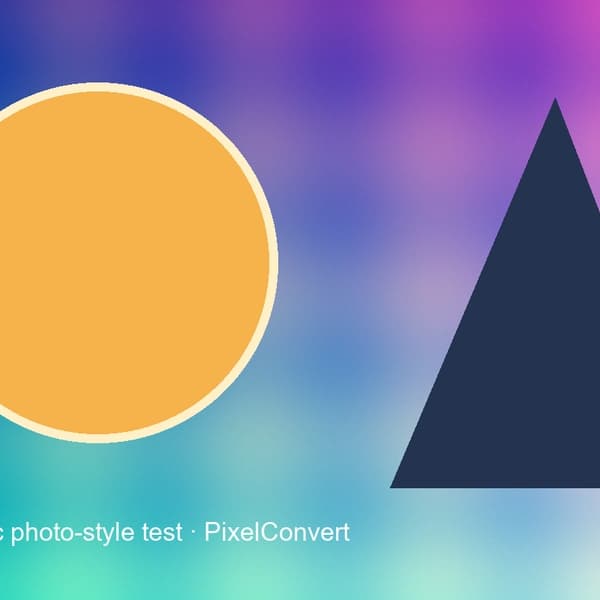
Actual crop-mode output captured from POST /api/v1/prepare/process on 9 September 2026. The square result is exactly 600×600, but the source caption and outer shapes demonstrate the content removed by a centered crop.
- Source
- 1200×800 · 826,866 bytes
- Fit result
- 600×400 · 38,620 bytes
- Crop result
- 600×600 · 54,468 bytes
Reproduce the test
These deterministic PixelConvert files contain no personal photos or third-party artwork. Download them to repeat the measurements or test another workflow.
- Download the synthetic source ↓
Copyright-safe 1200×800 optimized PNG used for both requests.
- Download the fit result ↓
600×400 JPEG that preserves the full 3:2 composition inside 600×600 maximum bounds.
- Download the crop result ↓
Exact 600×600 JPEG made from the centered square region of the source.
Browser and failure checks
- Production API contract
- Both requests returned 200. Fit reported 600×400 and 38,620 bytes; crop reported 600×600 and 54,468 bytes. Both selected JPEG quality 95 and metadata_removed=true.
- Output inspection
- The fitted file preserves the complete caption and both shapes. The square file visibly removes content from the left and right edges, matching the centered-crop calculation.
- Expected non-match
- Fit mode does not claim exact 600×600 output for a 3:2 source. It correctly reports 600×400 because preserving the aspect ratio and retaining the whole image are the selected requirements.
How this was tested
scripts/capture_fit_crop_case_study.py sent the same optimized 1200×800 PNG to the local production Docker API twice with target_format=jpeg, width=600, height=600, and no byte ceiling. Only dimension_mode changed. The endpoint used Pillow 12.3, LANCZOS resampling, centered ImageOps.fit for crop mode, and JPEG quality 95. Response headers and output files were saved in frontend/public/evidence/fit-vs-crop-600.json.
Read the full PixelConvert methodology →Limitations
- The centered crop assumes the important subject is near the middle; PixelConvert does not perform face detection or subject-aware framing.
- The byte measurements apply to this deterministic image and Pillow encoder version, not every photograph or JPEG encoder.
- Fit mode preserves the image aspect ratio but does not add padding to create an exact square canvas.
- Fit mode does not upscale a source smaller than the requested bounds.
Frequently asked questions
- What is the difference between fit and crop?
- Fit treats your dimensions as maximum bounds and keeps the whole image, so the output may be smaller than the numbers you gave. Crop produces exactly your dimensions by scaling to cover and cutting a centred region, which removes content.
- I asked for 600×600 and got 600×400. Is that a bug?
- No. That is fit mode answering correctly: it preserved the 3:2 aspect ratio of the source while staying within your bounds. If you need an exact square, use crop mode and accept that content will be removed.
- How much of my image will a square crop remove?
- Divide the shorter dimension by the longer one to get the fraction of the long axis that survives. A 1200×800 source keeps 800 of its 1200 pixels of width — two thirds — and loses 200 from each side.
- Why is the cropped file larger than the fitted one?
- Because 600×600 is 360,000 pixels and 600×400 is 240,000 — half again as many pixels to encode at the same quality setting. It is a bigger canvas, not a better image.
- Can the tool crop around the subject instead of the centre?
- No. The crop is strictly centred, with no face or subject detection. If your subject is off-centre, crop the source manually so it sits in the middle, then request the exact dimensions.
- Can I get an exact square without losing any content?
- Not with fit or crop alone. That requires padding — letterboxing the image inside a square canvas on a background colour — which is a separate operation PixelConvert does not currently perform. Pad the source in an image editor first.
Revision note: Reviewed 11 September 2026: added guidance on reading ambiguous dimension wording, the arithmetic for predicting centred-crop loss, the composition types most damaged by centred cropping, what fit mode deliberately does not do, and an ordered decision procedure. The captured measurements are unchanged from 9 September 2026.